 Mukesh1@gmail.com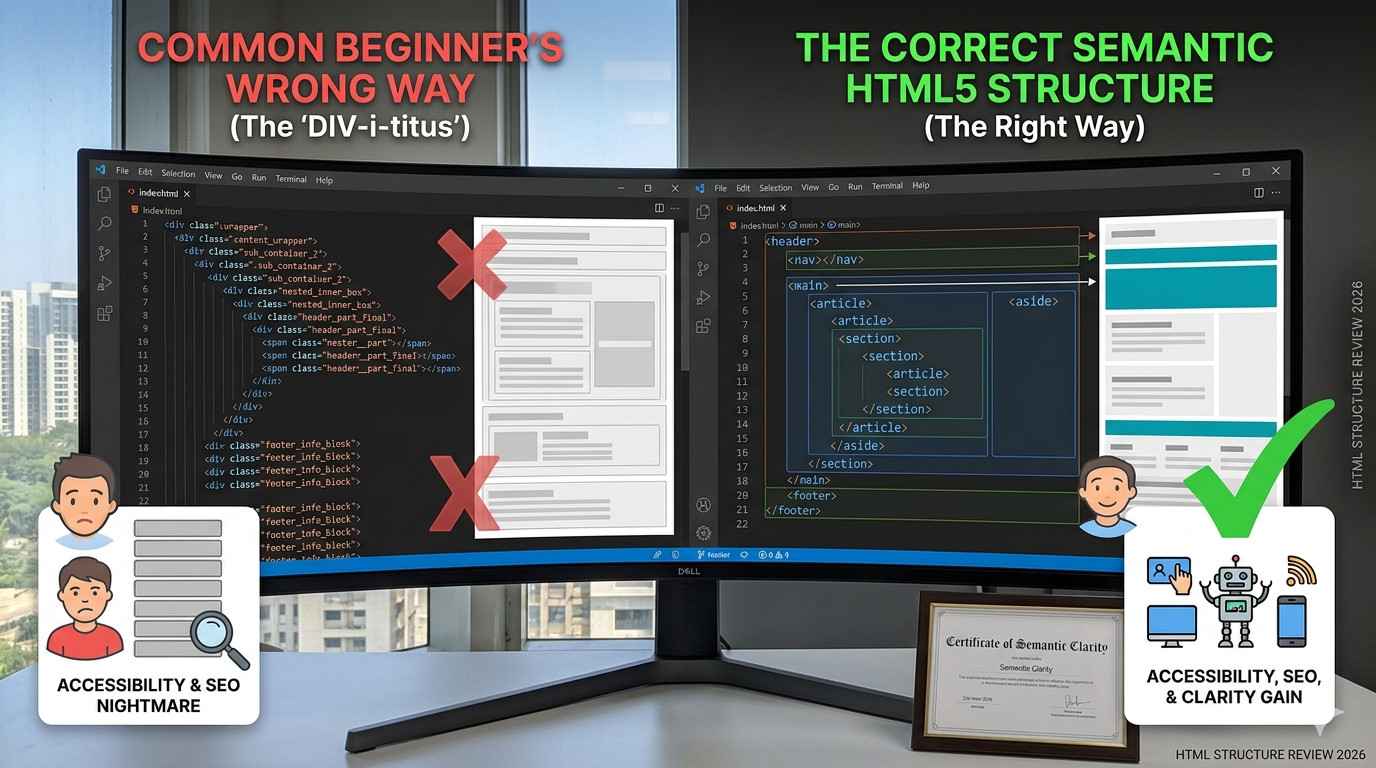
When someone first starts learning HTML, the natural instinct is to just start typing tags and see what happens in the browser. That’s not a bad way to explore. But somewhere along the way, most beginners pick up habits that quietly cause problems — problems with SEO, with accessibility, with how browsers interpret the page. Learning to structure an HTML page correctly from the beginning saves a lot of painful backtracking later.
This guide isn’t about memorizing rules. It’s about understanding why the structure matters — so the right choices start to feel obvious rather than arbitrary.
What “Page Structure” Actually Means in HTML
A lot of beginners think HTML structure just means the visual layout — where things sit on screen. That’s understandable, but it’s not quite right.
HTML structure refers to the logical organization of your document. It’s how you communicate meaning to browsers, search engines, and assistive tools like screen readers. The way you arrange your tags tells the browser what’s the main content, what’s navigation, what’s supplementary, and what order things should be read in.
When you structure an HTML page correctly, you’re essentially writing a document that makes sense to both humans and machines — at the same time.
The Skeleton Every HTML Page Needs
Every single HTML page — no matter how simple or complex — needs the same foundational skeleton. Missing even one part of this can cause silent problems.
Here’s what that skeleton looks like:
html
<!DOCTYPE html>
<html lang="en">
  <head>
    <meta charset="UTF-8">
    <meta name="viewport" content="width=device-width, initial-scale=1.0">
    <title>Your Page Title Here</title>
  </head>
  <body>
    <!-- All visible content goes here -->
  </body>
</html>
Simple enough. But each piece has a specific job — and beginners skip parts of this more often than you’d expect.
The DOCTYPE Declaration
The very first line — <!DOCTYPE html> — tells the browser which version of HTML you’re using. Without it, browsers enter something called “quirks mode,” where they apply inconsistent rendering rules from older web standards.
Pages in quirks mode can look different across browsers, have unpredictable spacing, and behave strangely with CSS. This one line prevents all of that.
The lang Attribute on the HTML Tag
The <html lang="en"> attribute tells browsers and screen readers what language the page is written in. Skipping this is a common oversight.
For a user relying on a screen reader in Hindi or Tamil, the correct lang attribute ensures text gets read with the right pronunciation rules. For search engines, it helps match your content to the right regional audience. It’s a two-second addition that carries real consequences when omitted.
The <head> Section: What Belongs There
The <head> is not visible on screen, but it’s one of the most important parts of your page. Beginners often treat it as an afterthought — a place to dump CSS links and nothing else.
What actually belongs in a well-structured <head>:
<meta charset="UTF-8">— handles character encoding so special characters display correctly<meta name="viewport" ...>— makes your page responsive on mobile devices<title>— the page title shown in browser tabs and search results<meta name="description">— the summary shown in search engine results- CSS stylesheet links
- Any necessary preload or font links
When you structure an HTML page correctly, the <head> is handled with as much care as the visible content. Many developers do the opposite.
How to Organize the <body> Section
This is where most beginner mistakes actually happen. The <body> is where your visible content lives, and the way you organize it shapes everything — from how search engines understand your page to how easy it is for someone using only a keyboard to navigate it.
Use Landmark Elements, Not Just Divs
HTML5 introduced semantic landmark elements specifically to replace the old habit of wrapping everything in <div> tags. These elements carry meaning:
<header>— the top section of the page, usually with the logo and main navigation<nav>— navigation links specifically<main>— the primary content of the page (only one per page)<footer>— the bottom section with contact info, copyright, etc.<aside>— supplementary content like sidebars or related links
A properly structured body looks something like this:
html
<body>
  <header>
    <nav>...</nav>
  </header>
  <main>
    <article>
      <h1>Main Article Title</h1>
      <section>...</section>
    </article>
    <aside>...</aside>
  </main>
  <footer>...</footer>
</body>
This isn’t just cleaner — it’s how you structure an HTML page correctly in a way that actually communicates intent to the browser.
Why Beginners Get the Heading Hierarchy Wrong
Heading tags — H1 through H6 — are probably the most misused elements in all of HTML. And the reason is almost always the same: beginners choose heading tags based on how big the text looks, not what the heading represents.
Someone wants a slightly large subtitle, so they reach for H3. They want something bigger, so they use H2. The actual hierarchy — the logical outline of the page — gets completely ignored in favor of visual styling.
This is a significant issue when you’re trying to structure an HTML page correctly.
The Right Way to Think About Headings
Think of headings as the table of contents for your page. H1 is the book title. H2s are the chapters. H3s are sections within those chapters. They should flow in order — you shouldn’t jump from H1 to H4, or use two H1 tags on a single page.
If you need text to look a certain size, use CSS. Don’t reach for a heading tag just because it renders bigger by default.
A screen reader user navigating your page will jump between headings to scan the content quickly — just like sighted users scan visually. If your headings jump around or are used for styling, that navigation becomes meaningless.
The <main> Tag: Criminally Underused
This one deserves its own mention because it gets skipped so often.
The <main> element should wrap the primary, unique content of the page — the stuff that’s different on every page. Navigation, headers, and footers repeat across pages, so they live outside <main>. The blog post, the product description, the contact form — that goes inside <main>.
Screen readers can jump directly to <main> to skip repetitive navigation. Search engines can use it to identify the core content for indexing. When you structure an HTML page correctly, <main> is non-negotiable.
Common Structural Mistakes and Their Real Consequences
Let’s look at the specific mistakes that come up most often — and what actually goes wrong when you make them.
Putting CSS and Scripts in the Wrong Place
Stylesheets belong in the <head>. JavaScript, in most cases, belongs just before the closing </body> tag — or uses defer/async attributes if placed in the <head>.
When scripts are placed incorrectly, they block the browser from rendering content. The user sees a blank page while waiting for scripts to load. This directly affects page speed scores, which affects SEO rankings.
Nesting Block Elements Inside Inline Elements
This is a classic beginner error. Something like putting a <div> inside a <span>, or a <p> inside another <p>. HTML has rules about which elements can live inside which other elements — and when you break those rules, browsers fix it silently in unpredictable ways.
The fix is to structure an HTML page correctly by understanding which elements are block-level and which are inline — and respecting the nesting rules.
Missing the Viewport Meta Tag
Without <meta name="viewport" content="width=device-width, initial-scale=1.0">, your page will load at desktop width on a mobile phone — tiny, unreadable, and zoomed out. Given that more than half of web traffic now comes from mobile devices, this is a real problem that affects both user experience and search rankings.
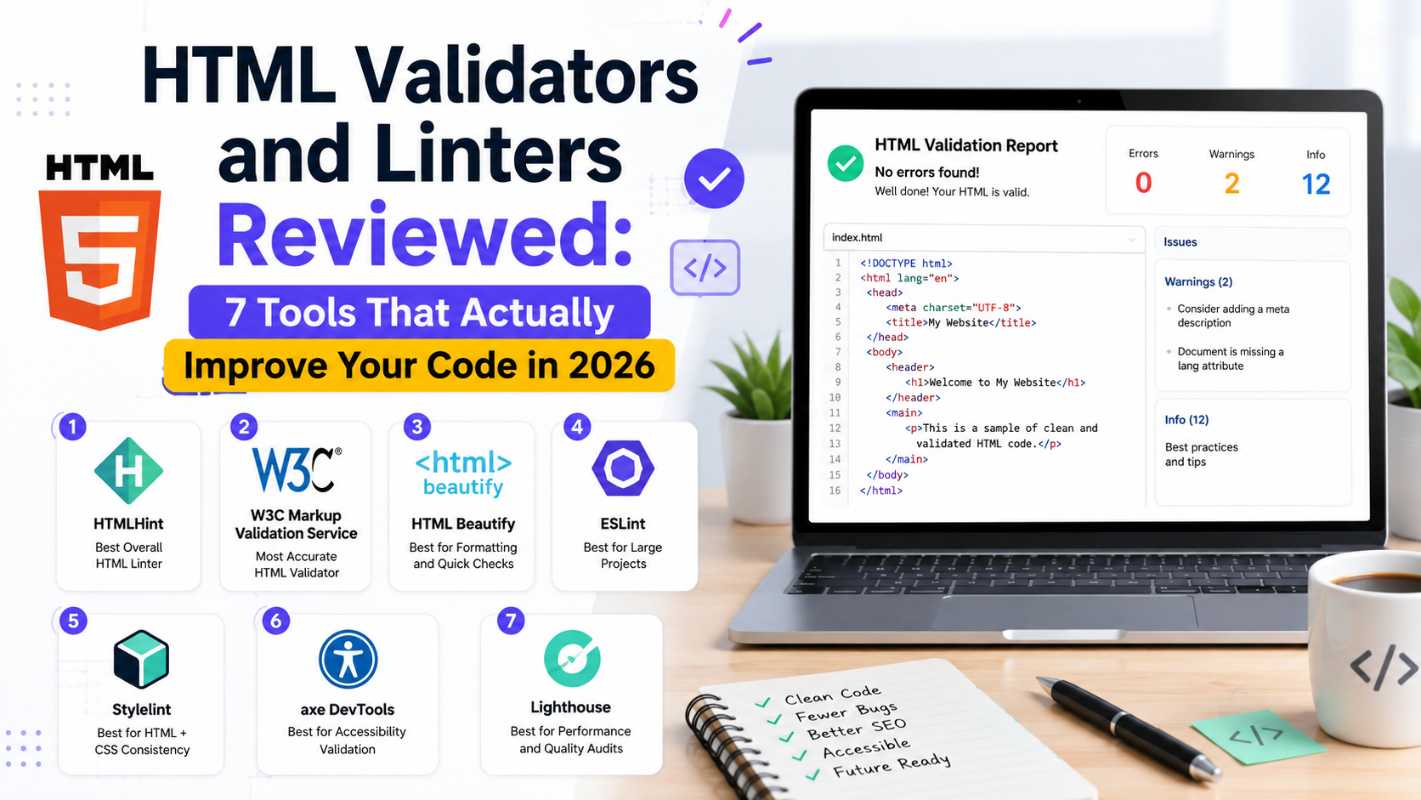
You can validate your HTML structure for free using the W3C Markup Validation Service and check your mobile responsiveness through Google’s Mobile-Friendly Test.
For deeper reading on related topics, our guide on HTML semantic elements explained for beginners walks through landmark elements in detail, and our article on how HTML mistakes silently hurt your SEO covers the ranking consequences of poor structure.
A Quick Reference: Structural Checklist
Before publishing any HTML page, run through this mentally:
- One
<!DOCTYPE html>at the top <html lang="...">with correct language code- Complete
<head>with charset, viewport, title, and description - Only one
<h1>per page - Headings in logical order — no skipping levels
<main>wrapping the primary content- Semantic landmark elements used where appropriate
- Scripts placed correctly with defer where needed
- All images have descriptive alt text
That list covers the majority of structural problems that trip up beginners.
Final Conclusion
Learning to structure an HTML page correctly isn’t about following rules for the sake of rules. It’s about understanding that your HTML communicates with more than just a browser window — it speaks to search engines, assistive technologies, developer teammates, and future versions of yourself who need to maintain the code.
Most beginners get it wrong not because they’re careless, but because early tutorials skip the “why” and jump straight to “just write this.” Once you understand what each structural element is doing — who it’s talking to and what it’s saying — the right choices start to feel natural.
Start with the skeleton. Add semantic landmarks. Get your heading hierarchy right. Handle your <head> seriously. These aren’t advanced techniques — they’re the foundation that makes everything else you build actually work properly.