 Mukesh1@gmail.com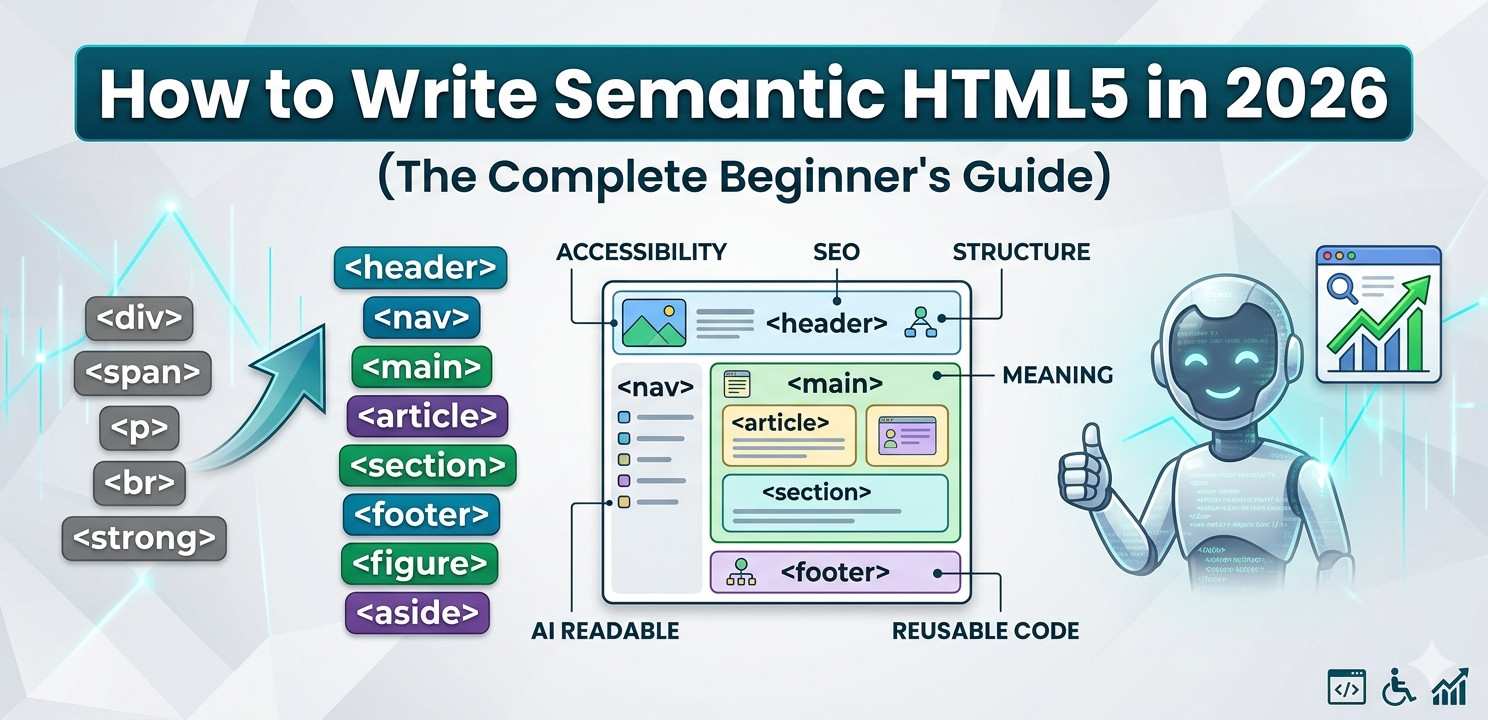
There’s a moment most beginners hit when learning web development — they get their page looking right in the browser, everything seems fine, and then someone more experienced looks at the code and says “but why is everything a div?” That moment is usually the introduction to semantic HTML5, and honestly, it’s one of the most important turning points in learning frontend development.
Semantic HTML5 isn’t a fancy add-on or an advanced topic saved for experts. It’s the foundation of writing HTML that actually means something — to browsers, to search engines, to screen readers, and to the next person who opens your code file. In 2026, with web standards more mature and search engines smarter than ever, getting this right from the beginning matters more than it ever has.
This guide is written for beginners. No assumptions about prior knowledge. Just clear, practical explanations with real examples.
What Semantic HTML5 Actually Means (In Plain Language)
The word “semantic” just means “relating to meaning.” So semantic HTML is HTML where the tags you choose actually describe what the content is — not just how it should look.
Compare these two lines:
html
<div class="main-heading">Welcome to My Blog</div>
<h1>Welcome to My Blog</h1>
Both might look identical in a browser with the right CSS. But the second one tells the browser, the search engine, and a screen reader: “this is the main heading of the page.” The first one says nothing useful — it’s just a box with a class name.
That’s the core idea behind semantic HTML5. Use the tag that matches what the content actually represents, not just what makes it look right on screen.
HTML5 — the version of HTML that’s been the standard since around 2014 and is still what we use today — introduced a whole set of semantic elements specifically designed to replace generic <div> and <span> wrappers with tags that carry real meaning.
Why Semantic HTML5 Still Matters in 2026
Some people treat this as an old conversation. “We know about semantic HTML, everyone uses it now.” But spend an hour looking at real websites in browser DevTools and you’ll find div soup everywhere — pages where every single element is a <div> with a descriptive class name, and almost no semantic tags in sight.
So why does it still matter?
Search Engine Understanding
Google and other search engines have gotten considerably smarter, but they still rely heavily on HTML structure to understand page content. Semantic HTML5 gives them direct signals — this is the main content, this is navigation, this is a standalone article, this is supplementary information.
Without those signals, crawlers make educated guesses. Sometimes those guesses work out. Often they don’t, and your content gets interpreted less accurately than it should be.
Accessibility Is Not Optional Anymore
Screen readers — software used by people with visual impairments — navigate web pages through HTML structure. When you use <nav>, the screen reader knows it’s a navigation region. When you use <main>, the user can jump directly to primary content skipping repeated navigation.
In many countries, web accessibility is now a legal requirement for certain types of websites. Beyond legality, it’s just the right thing to do. Semantic HTML5 is one of the most impactful things you can do for accessibility without writing a single line of JavaScript.
Maintainability Over Time
Code that uses semantic elements is genuinely easier to read and maintain. When you open a file and see <article>, <header>, <aside>, and <footer>, you immediately understand the document’s structure. When everything is a <div>, you have to read class names and CSS to figure out what’s happening.
The Core Semantic HTML5 Elements You Need to Know
Let’s go through the elements that matter most — what they mean, when to use them, and what they replace.
<header>
The <header> element represents introductory content for its parent section. On a full page, it typically contains the site logo, site name, and main navigation. Inside an <article>, it might contain the article title and author information.
html
<header>
  <img src="logo.png" alt="Company Logo">
  <nav>...</nav>
</header>
Note: <header> is not the same as <head>. The <head> contains metadata not shown on screen. <header> is visible page content.
<nav>
The <nav> element wraps navigation links — the primary menu, breadcrumbs, pagination controls, or any group of links that helps users move through the site.
Not every group of links needs a <nav> tag. Footer links to legal pages are links, but they’re not primary navigation. Use <nav> for the main navigation regions of your page.
html
<nav>
  <ul>
    <li><a href="/home">Home</a></li>
    <li><a href="/blog">Blog</a></li>
    <li><a href="/contact">Contact</a></li>
  </ul>
</nav>
<main>
This one is critically important and frequently missing. The <main> element wraps the primary, unique content of the page — the stuff that changes from page to page. Navigation, headers, and footers repeat everywhere, so they sit outside <main>.
There should be only one <main> per page. Screen readers use it as a landmark to jump directly past repeated content. Search engines use it to identify the core content for indexing.
Semantic HTML5 done right almost always includes a properly placed <main> element.
<article>
An <article> is self-contained content that could be removed from the page and still make complete sense on its own. Blog posts, news stories, product reviews, forum posts, user comments — these are all article candidates.
The test: could this content appear in an RSS feed or be shared on another website without losing context? If yes, it belongs in an <article>.
html
<article>
  <header>
    <h2>Understanding Solar Energy at Home</h2>
    <p>By Priya Sharma — March 15, 2026</p>
  </header>
  <p>Solar panels have become increasingly affordable...</p>
</article>
<section>
A <section> groups related content together under a common theme. Unlike <article>, sections are not self-contained — they’re parts of a larger whole.
A good rule of thumb: <section> should almost always have a heading inside it. If you find yourself using <section> without a heading, you probably want a <div> instead.
html
<section>
  <h2>Customer Reviews</h2>
  <article>...</article>
  <article>...</article>
</section>
<aside>
The <aside> element contains content that is related to the surrounding content but not central to it. Sidebars, pull quotes, author bios, related article links — these are classic aside use cases.
It doesn’t have to literally sit beside the main content visually. The semantic relationship is what matters, not the visual position.
<footer>
Like <header>, <footer> can appear at the page level or inside other elements like <article>. At the page level, it typically holds copyright information, links to legal pages, contact details, and social media icons.
html
<footer>
<p>© 2026 MyWebsite. All rights reserved.</p>
<nav>
<a href="/privacy">Privacy Policy</a>
<a href="/terms">Terms of Use</a>
</nav>
</footer><figure> and <figcaption>
These two work together. <figure> wraps self-contained media — an image, a diagram, a code block, a chart. <figcaption> provides a caption or description for it.
html
<figure>
  <img src="rainfall-chart.png" alt="Monthly rainfall data for Mumbai in 2025">
  <figcaption>Figure 1: Mumbai monthly rainfall, 2025. Source: IMD.</figcaption>
</figure>
Using <figure> and <figcaption> properly gives search engines richer context about your images and media.
<time>
The <time> element marks up dates and times in a machine-readable format. Humans can read “March 15, 2026” just fine — but a search engine or calendar application reads the datetime attribute.
html
<time datetime="2026-03-15">March 15, 2026</time>This is how Google generates those publication date snippets you see in search results.
How to Combine These Elements: A Real Page Example
Understanding elements individually is one thing. Seeing how they work together on an actual page is where it clicks.
Here’s a simplified but realistic structure for a blog page using proper semantic HTML5:
html
<!DOCTYPE html>
<html lang="en">
<head>
<meta charset="UTF-8">
<meta name="viewport" content="width=device-width, initial-scale=1.0">
<title>How Monsoon Affects Air Quality | EcoDaily</title>
<meta name="description" content="...">
</head>
<body>
<header>
<a href="/"><img src="logo.png" alt="EcoDaily Logo"></a>
<nav>
<ul>
<li><a href="/news">News</a></li>
<li><a href="/science">Science</a></li>
<li><a href="/climate">Climate</a></li>
</ul>
</nav>
</header>
<main>
<article>
<header>
<h1>How Monsoon Season Affects Urban Air Quality</h1>
<p>By <span>Arjun Menon</span> —
<time datetime="2026-06-01">June 1, 2026</time>
</p>
</header>
<section>
<h2>Why Rain Changes the Air</h2>
<p>...</p>
<figure>
<img src="aqi-monsoon.jpg" alt="AQI levels during monsoon in Delhi">
<figcaption>Delhi AQI comparison: pre-monsoon vs monsoon season</figcaption>
</figure>
</section>
<section>
<h2>Cities Most Affected by Seasonal Air Shifts</h2>
<p>...</p>
</section>
</article>
<aside>
<h2>Related Articles</h2>
<ul>
<li><a href="/wildfire-smoke">How Wildfire Smoke Travels</a></li>
<li><a href="/indoor-air">Improving Indoor Air Quality</a></li>
</ul>
</aside>
</main>
<footer>
<p>© 2026 EcoDaily</p>
</footer>
</body>
</html>Every element there has a purpose. Nothing is a <div> unless it genuinely needs to be. That’s semantic HTML5 in practice.
The Mistakes That Undermine Semantic HTML5
Even developers who know about semantic elements make some consistent errors. Here are the ones worth watching for.
Using <section> as a Styled Wrapper
If you’re wrapping a group of elements just to apply a background color or padding, that’s a <div> job. <section> implies thematic grouping with meaning. Using it purely for styling dilutes the semantics of your document.
Putting <article> Inside <article> Without Good Reason
This is actually valid HTML — user comments inside a blog post article, for example. But it gets misused. Nesting articles randomly because something “feels like its own thing” creates confusing document structure. Ask the self-contained content test every time.
Forgetting That <header> and <footer> Aren’t Just for Pages
Many beginners use <header> once at the top of the page and <footer> once at the bottom — and never again. But both elements can and should appear inside <article> and <section> elements when that content has its own introductory or closing information.
Skipping <main> Entirely
This is probably the most common omission. No visual consequence, so it gets forgotten. But from an accessibility and SEO standpoint, missing <main> is a real structural gap.
Tools for Checking Your Semantic HTML5
Writing semantic markup is one thing — verifying it is another. A few tools make this process much easier.
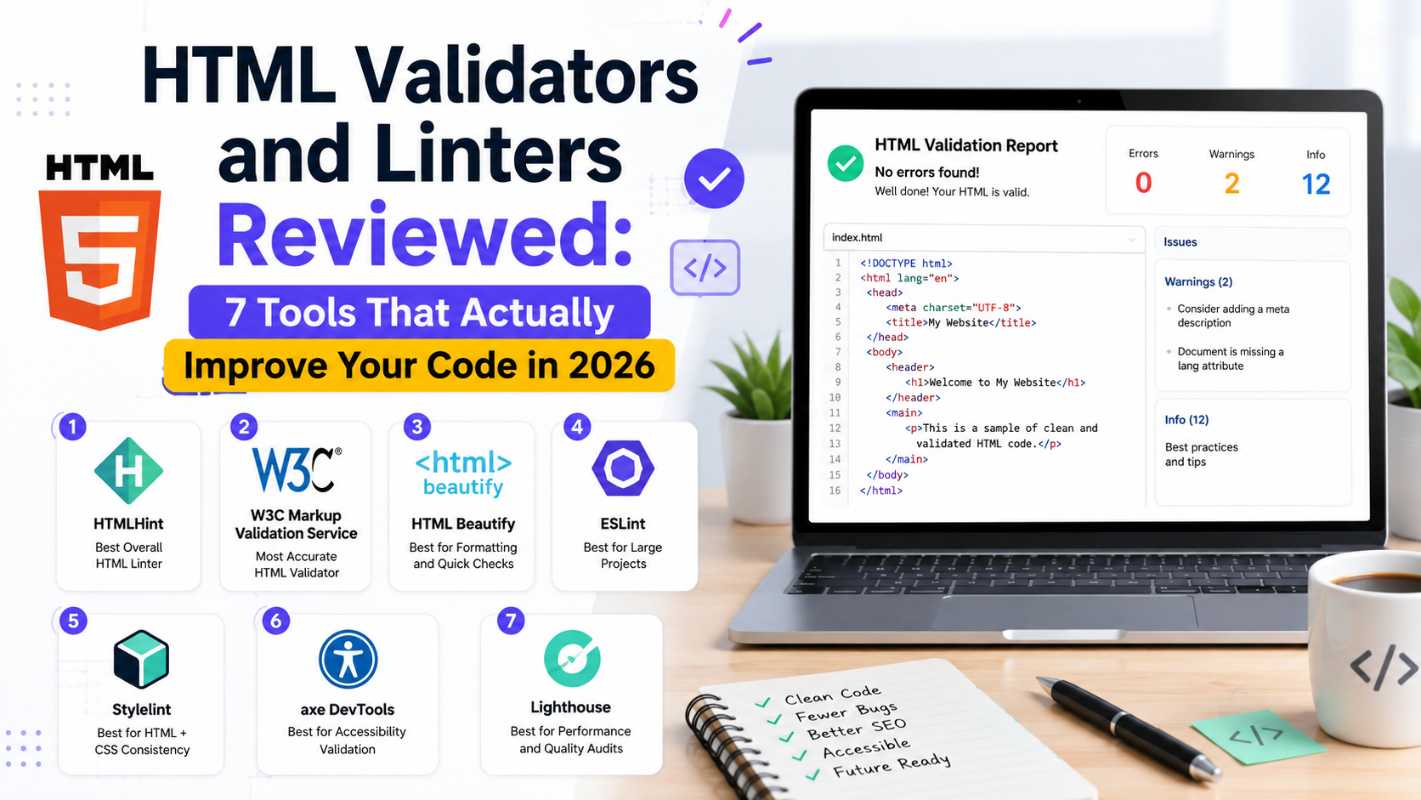
The W3C Markup Validation Service checks your HTML for errors and invalid nesting that might break semantic meaning. It’s free, reliable, and runs directly in your browser.
For accessibility specifically, WAVE Web Accessibility Evaluation Tool analyzes your page for missing landmarks, heading issues, and other structural accessibility problems. Just paste your URL and get a detailed visual report.
For related reading on structural topics, our guide on how to structure an HTML page correctly covers the foundational skeleton every page needs, and our article on HTML mistakes that silently hurt your SEO shows what happens when structure goes wrong.
A Practical Habit: Ask the Meaning Question First
The simplest daily habit that improves semantic HTML5 writing: before you type a tag, ask “what is this content, not what should it look like?”
Is it the main topic heading? → <h1> Is it a standalone piece of content? → <article> Is it navigation? → <nav> Is it just a layout wrapper with no inherent meaning? → <div>
That question, applied consistently, handles the vast majority of semantic decisions automatically.
Final Conclusion
Writing semantic HTML5 well in 2026 comes down to one sustained habit: choosing tags based on meaning rather than appearance. The elements covered in this guide — <header>, <nav>, <main>, <article>, <section>, <aside>, <footer>, <figure>, <time> — aren’t difficult to learn. The challenge is unlearning the reflex to reach for <div> every time and replacing it with the question: what does this content actually represent?
The payoff is real and measurable. Pages built with proper semantic HTML5 are easier for search engines to understand, more navigable for users with disabilities, and significantly easier to maintain as your projects grow. It’s one of those foundational skills that keeps giving returns long after you’ve learned it.
Start with one page. Open the DevTools. Look at your structure. Ask the meaning question for every element. That’s how this becomes second nature.