 Mukesh1@gmail.com
Introduction
If you’ve ever spent three hours chasing a bug that turned out to be a missing semicolon — or worse, an undefined variable hiding inside a nested function — you already know how frustrating JavaScript development can get. JavaScript debugging tools exist precisely for moments like these. They don’t just find errors; the right one can change how you think about your entire workflow.
In this guide, we’re going to look at some of the most widely used JavaScript debugging tools available right now, compare them honestly, and figure out which one is actually worth your time. Whether you’re building a simple website or working on a complex React application, there’s a tool in this list that fits your situation.
What Are JavaScript Debugging Tools, and Why Do They Matter?
JavaScript debugging tools are software utilities that help developers identify, analyze, and fix errors in their JavaScript code. They can pause code mid-execution, let you inspect values inside variables, trace network requests, and even record how long individual functions take to run.
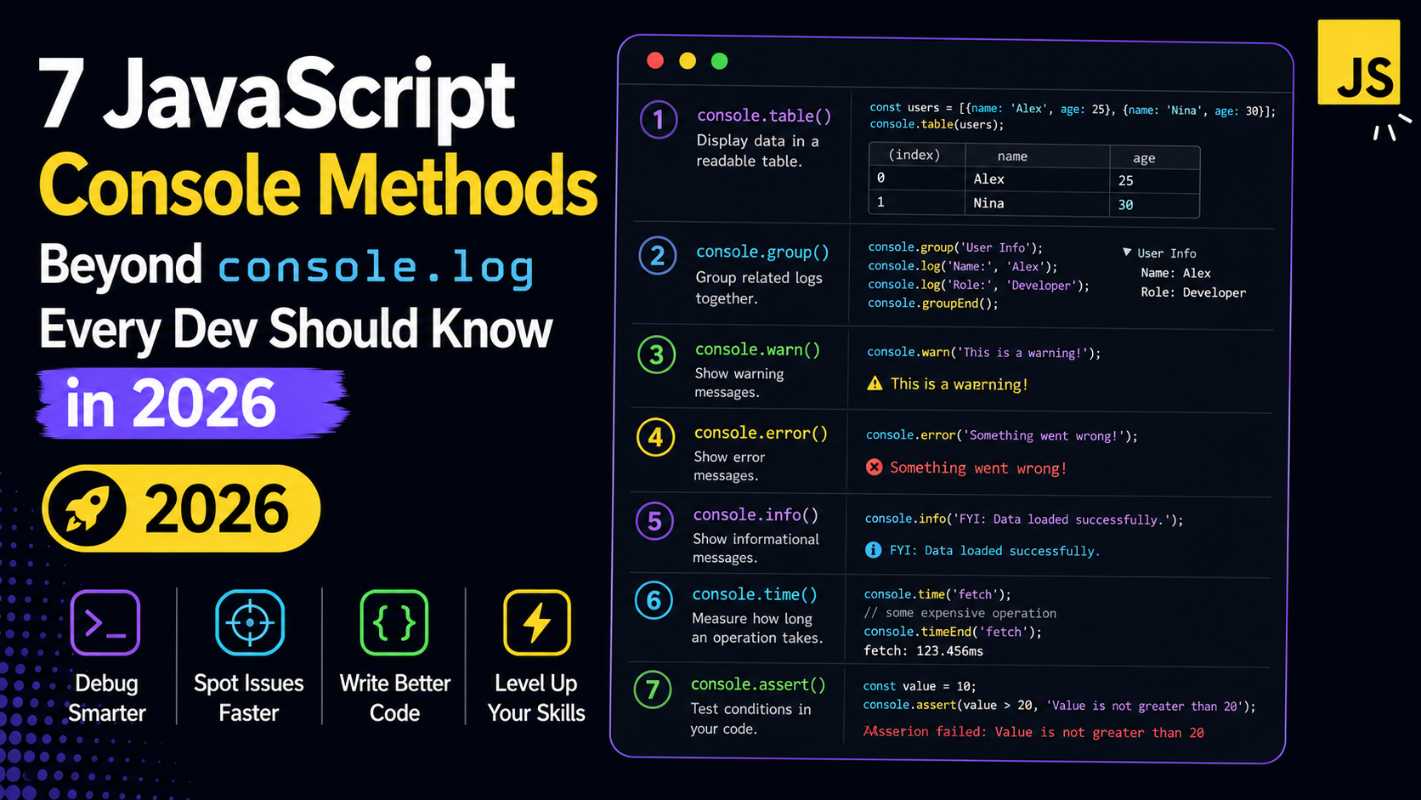
Without them, you’re basically flying blind. Sure, console.log has saved many developers on a deadline — and there’s no shame in that — but relying on it for everything is like trying to navigate a new city using only landmarks. It works, but it’s slow and you miss a lot.
Good JavaScript debugging tools make the invisible visible. They show you exactly what’s happening inside your code at any given moment, which is genuinely hard to overstate in value.
Chrome DevTools: The One Everyone Starts With
If you’ve ever right-clicked a webpage and hit “Inspect,” you’ve already opened Chrome DevTools. It’s probably the most accessible JavaScript debugging tool in the world, and it’s baked right into the browser — no installation needed.
What Makes It Stand Out
The Sources panel in DevTools is where most debugging actually happens. You can set breakpoints directly in your code, step through functions line by line, and watch variables change in real time. The Console panel gives you an interactive environment where you can run JavaScript commands on the fly, which is surprisingly useful for testing small pieces of logic quickly.
One thing people don’t always appreciate about DevTools is the Performance tab. It records a timeline of everything your page does — every script execution, every paint, every layout recalculation. If your app feels sluggish, this panel usually tells you why within a few minutes.
Where It Falls Short
DevTools is excellent for browser-specific debugging. But if you’re working on a Node.js backend or a CLI tool, it’s not going to help much out of the box. There’s a workaround (you can connect Chrome DevTools to Node via a flag), but it adds friction that more specialized JavaScript debugging tools don’t have.
VS Code Debugger: For People Who Live in Their Editor
Most developers spend the majority of their time inside a code editor. Visual Studio Code has a built-in JavaScript debugging tool that integrates directly into that environment, which is a meaningful advantage when you don’t want to context-switch constantly.
Setting Up Is Simpler Than It Looks
You create a launch.json file in your project, define a couple of configuration settings, and then press F5. VS Code launches a debug session right there in the editor. You can set breakpoints by clicking in the gutter next to your code, hover over variables to see their current values, and use a dedicated Debug Console for evaluating expressions.
For Node.js developers especially, this is probably the most natural JavaScript debugging tool available. Everything stays in one place — your files, your terminal, your debugging session. No switching tabs, no copying error messages across windows.
The Catch
VS Code’s debugger is powerful but requires a bit of configuration upfront. If your project uses TypeScript, a bundler like Webpack, or a framework like Next.js, you’ll need to set up source maps correctly for the debugger to point to the right files. It’s not difficult once you’ve done it once, but it can trip up beginners.
Node.js Built-in Debugger: Lightweight and Always Available
Node.js ships with its own built-in JavaScript debugging tool. You activate it by running node --inspect yourfile.js in the terminal. Once it’s running, you can connect to it through Chrome DevTools or through VS Code.
This tool is particularly useful in server environments where you can’t install anything extra. It’s minimal, honest, and gets the job done. It won’t win any design awards, but for quickly attaching a debugger to a running Node process, it’s hard to beat.
Firefox Developer Tools: Underrated and Worth a Look
Firefox has its own set of developer tools that includes a solid JavaScript debugging tool. The Debugger panel works similarly to Chrome DevTools — breakpoints, call stacks, variable inspection — but Firefox sometimes handles complex source maps better, especially with older projects.
The CSS and layout tools in Firefox are arguably better than Chrome’s, but for JavaScript specifically, the two are fairly comparable. If you’re already testing in Firefox for cross-browser compatibility, there’s no reason not to use its debugger instead of constantly switching back to Chrome.
Sentry: When Production Bugs Don’t Reproduce Locally
Here’s a scenario most developers recognize: a bug shows up in production, you try to reproduce it on your machine, and it simply doesn’t happen. This is where a JavaScript debugging tool like Sentry earns its place.
Sentry is an error monitoring platform. You add a small SDK to your application, and whenever an unhandled error occurs in production — for any user, anywhere — Sentry captures it. It records the full stack trace, the browser and OS the user was on, and even breadcrumbs showing what the user did right before the error happened.
It’s not a traditional debugger in the “pause and inspect” sense. But for tracking down real-world bugs that you can’t reproduce in a controlled environment, it’s one of the most genuinely useful JavaScript debugging tools available. You can learn more about how it works directly from the Sentry documentation.
Postman: For Debugging API-Related JavaScript Issues
A lot of JavaScript bugs aren’t in the logic itself — they’re in how the app communicates with APIs. Wrong request format, unexpected response structure, missing headers. Postman helps you isolate those issues.
While it’s not a JavaScript debugging tool in the traditional sense, it plays an important supporting role. If your JavaScript code is calling a REST API and something is going wrong, testing that request in Postman first tells you immediately whether the problem is on your side or the server’s side. This simple step saves a lot of confused debugging time.
Comparing JavaScript Debugging Tools: What Actually Matters
Let’s be honest — most developers will end up using two or three of these together, not just one. But if you had to pick a primary JavaScript debugging tool based on your situation, here’s a practical breakdown:
You’re building a frontend web app: Start with Chrome DevTools. It’s immediate, it’s in-browser, and it handles network requests, DOM inspection, and JavaScript errors all in one place. Add Sentry for production monitoring.
You’re building a Node.js backend: VS Code Debugger is your best primary JavaScript debugging tool here. The integration is smooth, and you can debug server code the same way you’d debug anything else. Firefox DevTools or Chrome DevTools via --inspect work as secondary options.
You’re debugging production issues: Sentry. No other tool on this list comes close for catching real-world errors that users experience.
You’re working in a constrained environment: The Node.js built-in debugger plus console.log is sometimes genuinely the right answer. Don’t let anyone make you feel bad for that.
Common Mistakes Developers Make When Using JavaScript Debugging Tools
Even experienced developers make these. Worth knowing about them.
Relying only on console.log: It works, but it scales poorly. Once you have more than a few logs, it gets hard to tell which output belongs to which part of the code. JavaScript debugging tools with proper breakpoints are much cleaner.
Ignoring the Network tab: A huge proportion of JavaScript bugs are actually network problems — a request failing, a response arriving in the wrong format, a CORS error. The Network tab in both Chrome DevTools and Firefox DevTools shows all of this clearly.
Not using source maps: If you’re using a bundler or TypeScript, set up source maps properly. Without them, your JavaScript debugging tool will point you to minified, unreadable compiled code instead of your actual source files.
Skipping performance profiling: Slow apps frustrate users. The Performance tab in Chrome DevTools is one of the most underused JavaScript debugging tools available, and it’s completely free. Use it before assuming performance problems need a library or architectural change.
A Few Practical Tips That Actually Help
These are simple things, but they make a real difference day to day.
Set conditional breakpoints when you’re debugging inside a loop. Right-click a breakpoint in Chrome DevTools or VS Code and add a condition — the code only pauses when that condition is true, which saves you from hitting F8 dozens of times.
Use the “Pause on exceptions” feature. Both Chrome DevTools and VS Code’s debugger can automatically pause execution when an error is thrown, before any catch block runs. This puts you exactly at the moment something went wrong.
Learn the call stack panel. When a bug occurs, the call stack tells you the chain of function calls that led there. It’s one of the most informative parts of any JavaScript debugging tool, and it’s often the fastest way to understand why something is broken.
For more in-depth guidance on using Chrome DevTools specifically, the official Chrome DevTools documentation is genuinely well-written and kept up to date.
H2: Which JavaScript Debugging Tool Saves You the Most Time?
After using these tools across different projects and environments, the honest answer is: it depends on where your bugs live.
If most of your debugging happens during development in the browser, Chrome DevTools is simply unbeatable for speed and convenience. If you spend most of your time in a code editor working on Node.js, VS Code Debugger keeps everything tightly integrated. If production errors are your main headache, Sentry catches things no local JavaScript debugging tool ever will.
The time you save comes from choosing the right tool for the right moment — not from finding one perfect solution. Most experienced developers keep Chrome DevTools, VS Code, and some form of error monitoring running in parallel.
Final Conclusion
JavaScript debugging tools have come a long way. What once required expensive software or deep expertise is now largely built into your browser or code editor at no cost. The core tools — Chrome DevTools, VS Code Debugger, Firefox DevTools, the Node.js inspector — are free, well-maintained, and genuinely capable.
The biggest time savings don’t come from using every tool. They come from understanding what each one does well, and reaching for the right one at the right moment. Start with what’s already available to you, build good habits around breakpoints and the network panel, and add something like Sentry when you’re ready to handle production errors seriously.
Good debugging isn’t just about fixing bugs faster — it’s about understanding your code more deeply. The tools in this list help you do both.