 Mukesh1@gmail.com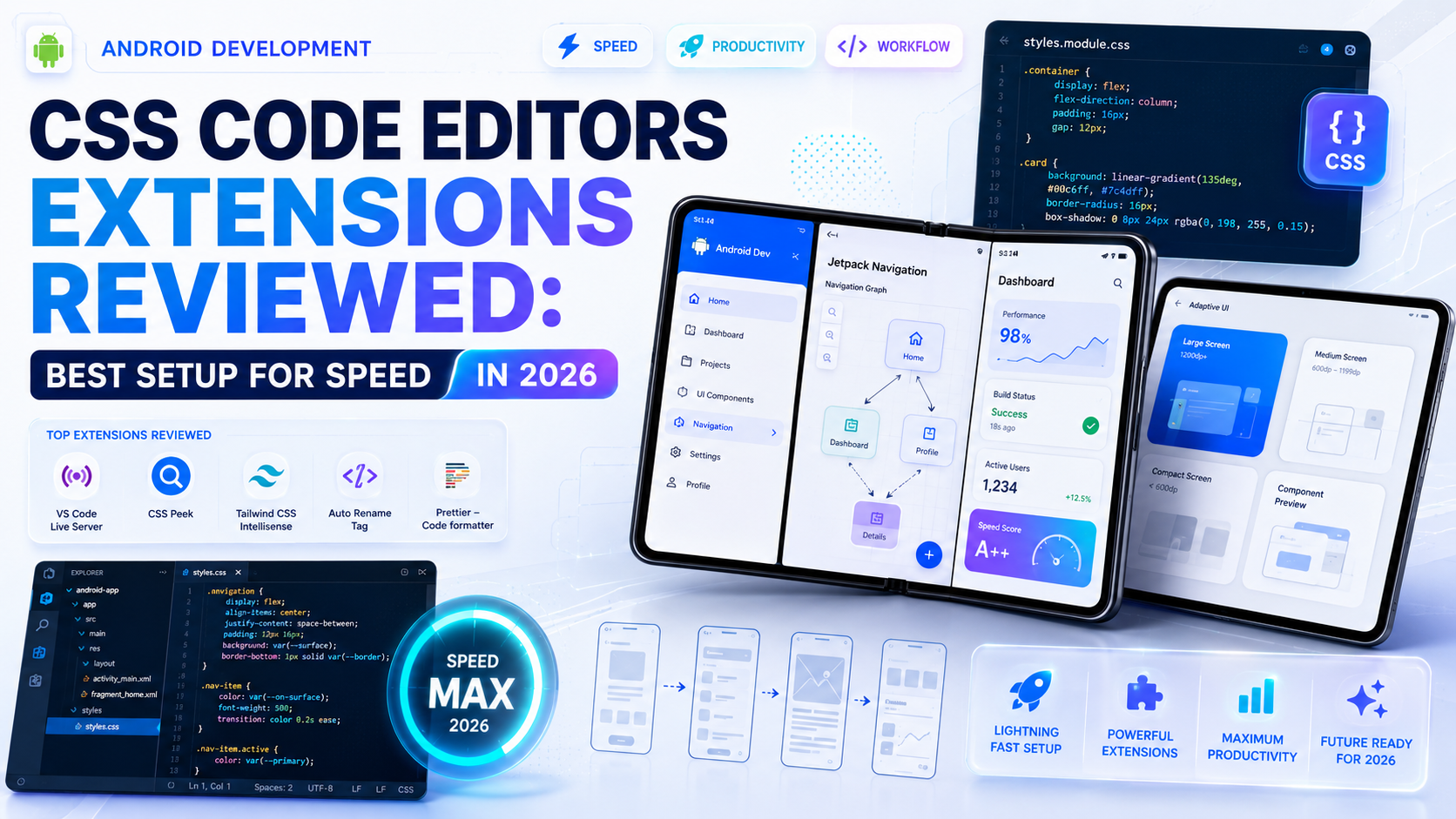
Introdection
The tools you write CSS in matter more than most beginners realize. Two developers with equal skill levels can have dramatically different productivity just based on their editor setup. One has autocomplete that finishes property names, a formatter that fixes indentation on save, and a browser that refreshes instantly on every change. The other is typing full property names by hand, manually indenting code, and hitting F5 constantly.
The right CSS code editors extensions setup is one of those things that quietly saves hours every week — so gradually you don’t notice until you try working without it. This guide reviews the editors and extensions that actually make a difference, with honest assessments of what each one does well and where it falls short.
Why Your CSS Code Editor Setup Actually Matters
Most developers starting out pick an editor because someone recommended it or it was the first result they found. That’s fine. But staying with the default setup — no extensions, no custom configuration, no live preview — means you’re leaving a significant amount of speed on the table.
Good CSS code editors extensions do several things that compound over a full working day. Autocomplete means you type dis and hit Tab instead of typing display: flex in full. A formatter means you never manually fix indentation. A color picker means you see the actual color as you type a hex value. Live reload means your browser updates the moment you save.
None of these individually seem life-changing. Together, they change how fast you can move through a CSS file — and more importantly, they reduce the mental friction of small repetitive tasks so you can focus on the actual design decisions.
The Main CSS Code Editors Worth Using in 2026
Visual Studio Code — The Clear Leader
VS Code is the dominant CSS code editors extensions platform in 2026 and has been for several years. It’s free, open source, actively maintained by Microsoft, and has an extension ecosystem that covers almost any workflow requirement you can think of.
Out of the box, VS Code handles CSS reasonably well — basic syntax highlighting, simple autocomplete, and built-in Emmet abbreviation support. But the real reason VS Code leads the CSS code editors extensions conversation is the extension marketplace. The combination of VS Code’s solid base with the right extensions produces a genuinely professional CSS writing environment.
What it does well: Speed, extension variety, Git integration, integrated terminal, and the most active community of any editor. Configuration through settings.json gives you precise control over every behavior.
What it doesn’t do as well: The default CSS autocomplete is decent but not as deep as WebStorm’s built-in intelligence. Heavier projects can occasionally feel slower than Sublime Text on older machines.
Verdict for CSS: 9.5/10. If you’re not already using VS Code, this is where you should start your CSS code editors extensions journey.
WebStorm — The Professional’s Choice
WebStorm is JetBrains’ commercial IDE for web development. Unlike VS Code, where CSS intelligence comes from extensions, WebStorm has deep CSS understanding built into its core engine.
It understands the relationship between your CSS selectors and your HTML elements. It warns you when a selector doesn’t match anything. It autocompletes property values based on the MDN specification. It refactors class names across HTML and CSS simultaneously. For working with CSS at a professional level on large projects, the built-in intelligence is genuinely impressive.
What it does well: Deep CSS intelligence without needing extensions, excellent refactoring tools, and superior handling of CSS preprocessors like Sass and Less out of the box. For teams working on large design systems, WebStorm’s consistency is valuable.
What it doesn’t do as well: It’s not free — a subscription is required after the trial period. It’s heavier on system resources than VS Code. And the extension ecosystem, while decent, is smaller than VS Code’s.
Verdict for CSS: 8.5/10. Worth the cost for professional teams working on CSS-heavy projects. For individual developers and beginners, VS Code with good extensions closes most of the gap.
Sublime Text — The Speed Demon
Sublime Text is older than both VS Code and WebStorm, but it has a dedicated following for one reason: it is genuinely fast. Opening a 10,000-line CSS file in Sublime Text is instantaneous. The same file in VS Code takes a noticeable moment.
For developers who work with very large CSS files or who want an editor that never feels sluggish, Sublime Text remains a legitimate CSS code editors extensions choice in 2026. Its multi-cursor editing, multiple selection, and keyboard-first workflow are still among the best of any editor.
What it does well: Raw speed, multi-cursor editing, keyboard shortcuts, and low memory usage. The distraction-free full-screen mode is genuinely pleasant for focused CSS work.
What it doesn’t do as well: The extension ecosystem is smaller and less actively maintained than VS Code’s. Some extensions haven’t been updated in years. Live development features require more manual setup.
Verdict for CSS: 7.5/10. An excellent secondary editor and a strong choice if machine performance is a constraint. But for most developers starting fresh, VS Code provides more out of the box.
Zed — The New Contender Worth Watching
Zed is a newer editor built with performance as a first priority, written in Rust. It launched with strong CSS support and collaborative editing built in. In 2026, it’s still maturing but already fast enough and capable enough that it’s worth mentioning in any CSS code editors extensions review.
What it does well: Exceptional speed even on large files, built-in collaboration features, and a clean, distraction-free interface with good CSS syntax support.
What it doesn’t do as well: The extension ecosystem is still small compared to VS Code. Some workflow integrations that VS Code handles smoothly require workarounds.
Verdict for CSS: 7/10 currently. Watch this editor — it’s improving fast. If performance is your top priority and you’re willing to work with a smaller extension library, it’s worth trying.
The Best CSS Extensions for VS Code in 2026
The real CSS code editors extensions productivity gains for most developers come from a well-chosen set of VS Code extensions. Here are the ones that make the most consistent difference.
CSS IntelliSense — Essential
The CSS IntelliSense extension provides rich autocomplete for CSS properties, values, selectors, and at-rules. As you type a property name, it suggests completions with documentation inline. As you type a value, it shows all valid options for that property.
This sounds basic — but the depth matters. When you type animation- it shows every valid animation sub-property. When you type display: it lists every valid display value. For developers still building their CSS vocabulary, this is genuinely educational as well as time-saving.
Install it, and you’ll never manually type a full CSS property name again.
Prettier — CSS Formatting on Save
Prettier is a code formatter that automatically reformats your CSS according to consistent rules every time you save a file. Inconsistent indentation, missing semicolons, properties in random order — Prettier handles all of it silently.
json
// VS Code settings.json — enable format on save
{
  "editor.formatOnSave": true,
  "editor.defaultFormatter": "esbenp.prettier-vscode"
}
With this configuration in place, you can write CSS quickly and loosely during development — Prettier cleans it up the moment you save. For teams, Prettier enforces consistent code style across every developer’s machine without any manual effort or code review comments about formatting.
Live Server — Instant Browser Preview
Live Server launches a local development server that automatically refreshes your browser whenever you save a CSS file. This replaces the manual save → switch to browser → refresh cycle with a fully automatic update.
For CSS work specifically, this is one of the highest-impact CSS code editors extensions you can install. Seeing your layout change the instant you save — without switching windows and pressing F5 — dramatically speeds up the iteration cycle when fine-tuning spacing, colors, and responsive breakpoints.
Right-click any HTML file in VS Code and select “Open with Live Server” to start. Your default browser opens automatically and stays in sync with your file changes.
CSS Peek — Jump to Any Style Definition
CSS Peek lets you click on a class name in your HTML and jump directly to its CSS definition — or hover over it to see the styles applied without leaving the HTML file. Working on a project with multiple CSS files across many folders becomes significantly easier.
html
<!-- Hover over "hero-section" in VS Code with CSS Peek installed -->
<section class="hero-section">
A popup appears showing every style rule applied to .hero-section. Click it to jump to the CSS file. This is one of those CSS code editors extensions that seems minor until you’re working on a project with 15 CSS files and need to find where a specific class is defined.
Color Highlight — See Colors as You Type
Color Highlight underlines or backgrounds every color value in your CSS with the actual color it represents. When you see #2ecc71 in your stylesheet, Color Highlight shows a small green square next to it.
This sounds small. In practice, it means you never have to mentally translate hex values while reading or writing CSS. You see the actual color in context, which makes working with color palettes significantly faster and reduces mistakes from using the wrong hex code.
Stylelint — CSS Quality and Error Detection
Stylelint is a CSS linter that catches errors, enforces conventions, and warns about potential problems before they cause visual bugs. It flags duplicate properties, invalid values, unknown properties, and vendor prefix issues.
css
/* Stylelint catches this — duplicate property */
.card {
  background: white;
  padding: 1rem;
  background: #f8f9fa; /* flagged as duplicate */
}
```

For developers working with CSS preprocessors or large stylesheets, Stylelint is one of the most valuable **CSS code editors extensions** for catching problems that are easy to miss visually. Configure it once with a `.stylelintrc` file and it runs silently on every file you open.

### Emmet — Already Built In, But Worth Understanding

Emmet isn't an extension — it's built into VS Code by default. But many developers don't realize its full capability for CSS work.

In a CSS file, Emmet abbreviations expand to full property-value pairs:
```
m10        → margin: 10px;
p20-30     → padding: 20px 30px;
df         → display: flex;
aic        → align-items: center;
bg#fff     → background: #fff;
fz16       → font-size: 16px;
Learning 20 or 30 Emmet CSS abbreviations is a one-time investment that pays back in speed every day. It’s one of the most underused productivity features built directly into the most popular CSS code editors extensions platform.
A Practical CSS Editor Setup Recommendation
For most web developers in 2026, this setup covers everything without being overwhelming:
Editor: VS Code with the following extensions installed — CSS IntelliSense, Prettier, Live Server, CSS Peek, Color Highlight, and Stylelint. Configure "editor.formatOnSave": true in settings.
Font: A monospace font with good legibility for code. Fira Code or JetBrains Mono with ligatures enabled makes CSS operators and arrows significantly more readable.
Theme: A theme with good CSS syntax highlighting contrast. One Dark Pro and GitHub Dark Default both handle CSS property and value colors well.
Settings worth enabling:
json
{
  "editor.formatOnSave": true,
  "editor.tabSize": 2,
  "editor.wordWrap": "on",
  "css.validate": true,
  "emmet.triggerExpansionOnTab": true,
  "editor.bracketPairColorization.enabled": true
}
For a complete reference on VS Code’s built-in CSS features and configuration options, the VS Code CSS documentation covers every built-in capability in detail. And for understanding Prettier’s CSS formatting configuration, the Prettier documentation explains every available option.
If you’re also working on learning CSS layout techniques that this editor setup helps you write faster, our centering a div CSS complete guide covers every centering method with practical examples. And for developers building Bootstrap projects where these editor tools become even more useful, our build responsive website Bootstrap 5 guide walks through a complete project where a good editor setup makes a real difference.
Final Conclusion
The best CSS code editors extensions setup isn’t the most feature-packed one — it’s the one that removes friction from your specific workflow without adding complexity you don’t need. For the majority of web developers in 2026, that means VS Code with a focused set of well-maintained extensions: intelligent autocomplete, automatic formatting, live browser preview, and color visualization.
WebStorm is genuinely excellent for teams working on large CSS projects who can justify the cost. Sublime Text remains valuable for raw speed. Zed is worth watching as it matures.
But regardless of which editor you choose, the productivity gains from proper CSS code editors extensions configuration are real and compound daily. Set it up once, build the habit of using it properly, and the time saved adds up to hours every week — hours better spent on the actual design decisions that matter.