 Mukesh1@gmail.com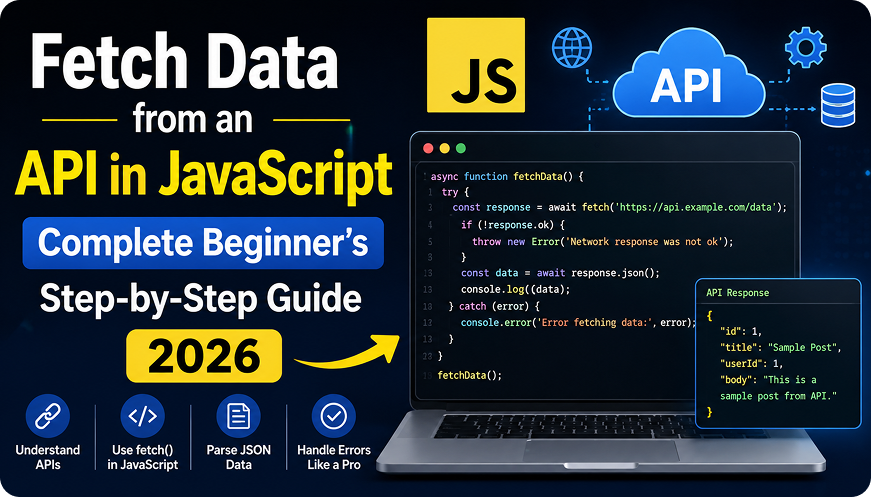
Introduction
If you’ve been learning JavaScript for a while, there comes a moment when you stop working with hardcoded data and start pulling real information from the internet. That’s where APIs come in — and learning to fetch data from an API in JavaScript is honestly one of the most important skills you’ll pick up as a web developer.
It’s not as complicated as it sounds. You don’t need a framework. You don’t need fancy libraries. The browser itself gives you everything you need to fetch data from an API in JavaScript, and once you understand the basics, it becomes second nature.
This guide walks through everything from scratch — what an API actually is in practical terms, how the Fetch API works, how to handle responses properly, and how to deal with errors without breaking your app. Real code, real examples, no fluff.
What Is an API and Why Do You Need to Fetch Data from It?
Before writing a single line of code, it helps to have a clear mental picture of what’s actually happening.
An API (Application Programming Interface) is basically a system that lets two pieces of software talk to each other. Think of it like a waiter at a restaurant. You tell the waiter what you want (your request), the waiter goes to the kitchen (the server), and comes back with your food (the data).
When you fetch data from an API in JavaScript, you’re essentially sending a message to some server on the internet — “hey, give me the current weather data” or “give me a list of users” — and the server responds, usually with JSON data that you can use in your app.
Almost everything you use online relies on this. Social media feeds, weather apps, stock prices, maps — all of it involves fetching data from APIs in the background. Learning this skill opens the door to building real, dynamic applications.
Understanding JSON Before You Fetch
When you fetch data from an API in JavaScript, the response almost always comes back as JSON. JSON stands for JavaScript Object Notation, and it’s just a structured way of writing data that both humans and machines can read easily.
Here’s a simple example of what JSON looks like:
{
  "name": "Aarav",
  "city": "Mumbai",
  "age": 26
}
It looks very similar to a regular JavaScript object, which makes it easy to work with. Once you fetch data, you’ll convert this JSON into actual JavaScript objects that you can use in your code.
The Fetch API – Your Main Tool
The fetch() function is built right into modern browsers. You don’t need to install anything. To fetch data from an API in JavaScript, you simply call fetch() with the URL of the API you want to talk to.
Here’s the most basic version:
fetch('https://jsonplaceholder.typicode.com/users/1')
  .then(response => response.json())
  .then(data => console.log(data))
  .catch(error => console.error('Error:', error));
Let’s break this down:
fetch(url)— sends the request to the API.then(response => response.json())— converts the response to JSON.then(data => console.log(data))— lets you actually use the data.catch(error => ...)— handles any network errors
This works, and it’s totally valid code. But most developers today use a cleaner approach called async/await, which we’ll cover next.
Step-by-Step: How to Fetch Data from an API in JavaScript Using Async/Await
The async/await syntax makes it much easier to read and write fetch calls. Instead of chaining .then() blocks, you write code that looks almost like normal, synchronous JavaScript.
Step 1 — Create an Async Function
Any function that needs to fetch data from an API in JavaScript should be marked as async. This tells JavaScript that the function will do some waiting.
async function getUserData() {
  // we'll fill this in step by step
}
Step 2 – Use the await Keyword to Fetch
Inside your async function, use await in front of fetch(). This tells JavaScript to pause and wait for the response before continuing.
async function getUserData() {
  const response = await fetch('https://jsonplaceholder.typicode.com/users/1');
  console.log(response);
}
At this point, response is just the raw HTTP response — not the actual data yet.
Step 3 – Convert the Response to JSON
The response you get back is a Response object. To get the usable data out of it, you call .json() on it. This is also a promise, so you need await here too.
async function getUserData() {
  const response = await fetch('https://jsonplaceholder.typicode.com/users/1');
  const data = await response.json();
  console.log(data);
}
Now data holds the actual user object you can work with.
Step 4 – Use the Data
Once you have the data, you can do anything with it — display it on a webpage, pass it to other functions, store it in a variable, etc.
async function getUserData() {
  const response = await fetch('https://jsonplaceholder.typicode.com/users/1');
  const data = await response.json();

  console.log('Name:', data.name);
  console.log('Email:', data.email);
  console.log('City:', data.address.city);
}

getUserData();
That’s the core of how you fetch data from an API in JavaScript. Clean, readable, and straightforward.
Error Handling – Don’t Skip This Part
A lot of beginner tutorials skip proper error handling. That’s a mistake, because network requests fail all the time — bad internet, wrong URL, server down, etc. Your app should handle these gracefully.
The cleanest way to fetch data from an API in JavaScript with proper error handling is using try/catch:
async function getUserData() {
  try {
    const response = await fetch('https://jsonplaceholder.typicode.com/users/1');

    if (!response.ok) {
      throw new Error(`HTTP error! Status: ${response.status}`);
    }

    const data = await response.json();
    console.log(data);

  } catch (error) {
    console.error('Something went wrong:', error.message);
  }
}

getUserData();
There are two things worth paying attention to here.
First, response.ok — this checks if the HTTP status code is in the 200–299 range (which means success). The fetch() function doesn’t automatically throw an error for 404 or 500 responses, which surprises a lot of beginners. You have to check it manually.
Second, the catch block — this catches actual network errors, like when the user is offline or the URL doesn’t exist at all.
Always include both checks when you fetch data from an API in JavaScript in a real project.
Fetching a List of Items – Working with Arrays
Most real-world APIs return arrays of items, not just a single object. Let’s look at how to handle that.
Here’s an example that fetches a list of posts and displays each one:
async function getAllPosts() {
  try {
    const response = await fetch('https://jsonplaceholder.typicode.com/posts');

    if (!response.ok) {
      throw new Error('Failed to fetch posts');
    }

    const posts = await response.json();

    posts.forEach(post => {
      console.log(`Title: ${post.title}`);
    });

  } catch (error) {
    console.error('Error fetching posts:', error.message);
  }
}

getAllPosts();
The posts variable here is an array of 100 post objects. You can loop through it, filter it, map it — just like any regular JavaScript array. This is a very common pattern you’ll use constantly when you fetch data from an API in JavaScript.
Displaying Fetched Data on a Web Page
Knowing how to fetch data is one thing. Displaying it on an actual webpage is where it gets more practical. Here’s a complete mini-example that fetches users and renders them as HTML:
<!DOCTYPE html>
<html lang="en">
<head>
  <meta charset="UTF-8">
  <title>Fetch API Demo</title>
</head>
<body>
  <h2>Users</h2>
  <ul id="user-list"></ul>

  <script>
    async function loadUsers() {
      try {
        const response = await fetch('https://jsonplaceholder.typicode.com/users');

        if (!response.ok) throw new Error('Request failed');

        const users = await response.json();
        const list = document.getElementById('user-list');

        users.forEach(user => {
          const li = document.createElement('li');
          li.textContent = `${user.name} — ${user.email}`;
          list.appendChild(li);
        });

      } catch (error) {
        console.error('Could not load users:', error.message);
      }
    }

    loadUsers();
  </script>
</body>
</html>
Save this as an HTML file, open it in a browser, and you’ll see a live list of users fetched from a real API. This is the complete picture of what it means to fetch data from an API in JavaScript — from request all the way to visible output.
Using Query Parameters With the Fetch API
Sometimes APIs let you pass extra options in the URL — things like filtering by category, setting a limit, or searching by keyword. These are called query parameters.
Say you want to fetch only the posts written by user with ID 1:
async function getPostsByUser(userId) {
  try {
    const response = await fetch(
      `https://jsonplaceholder.typicode.com/posts?userId=${userId}`
    );

    if (!response.ok) throw new Error('Failed to fetch');

    const posts = await response.json();
    console.log(`Found ${posts.length} posts for user ${userId}`);

  } catch (error) {
    console.error(error.message);
  }
}

getPostsByUser(1);
The ?userId=1 part is the query parameter. Most public APIs use this format. When you fetch data from an API in JavaScript, you’ll often need to build URLs like this dynamically based on user input or settings.
Sending Headers With Your Fetch Request
Some APIs require you to send along extra information with your request — like an API key or a content type header. You can do this by passing an options object as the second argument to fetch().
async function getProtectedData() {
  try {
    const response = await fetch('https://api.example.com/data', {
      method: 'GET',
      headers: {
        'Authorization': 'Bearer your-api-key-here',
        'Content-Type': 'application/json'
      }
    });

    if (!response.ok) throw new Error('Authorization failed');

    const data = await response.json();
    console.log(data);

  } catch (error) {
    console.error(error.message);
  }
}
This is how most real-world APIs work. When you register for an API service (weather data, maps, payment systems), they give you an API key that you include in headers like this. You’ll use this pattern a lot as you build more serious applications.
Common Mistakes When You Fetch Data from an API in JavaScript
A few things trip up almost every beginner at some point.
Forgetting await — if you forget to put await before fetch() or before .json(), you’ll get a Promise object instead of the actual data. Your code will run but you won’t see what you expect.
Not checking response.ok — as mentioned earlier, fetch() won’t throw on 404 errors. If you skip this check, your app will silently fail when an API returns an error code.
Calling the function without async — if you use await inside a function that isn’t marked as async, JavaScript will throw a syntax error. The two always go together.
CORS errors — this one isn’t really your code’s fault. Some APIs block requests from browser-based code unless certain settings are enabled on the server side. If you hit a CORS error, the API you’re trying to use doesn’t allow direct browser access, and you’ll need to route through a backend server.
Understanding these mistakes will save you a lot of time when you fetch data from an API in JavaScript in real projects.
A Quick Note on Free Public APIs for Practice
If you want to practice what you’ve learned, there are several free APIs that work great for beginners with no sign-up required:
- JSONPlaceholder — fake data for posts, users, todos (used in all examples above)
- Open-Meteo — free weather data with no API key needed
- REST Countries — data about every country in the world
- The Dog API — random dog images, great for quick experiments
All of these work perfectly for practicing how to fetch data from an API in JavaScript without needing to create accounts or manage keys
Final Conclusion
Learning to fetch data from an API in JavaScript is one of those skills that changes how you think about what’s possible with code. Once you can pull live data from the internet into your web pages, you stop being limited to static demos and start building things that actually feel real.
The process isn’t complicated when you break it down. You send a request using fetch(), wait for the response with await, convert it to JSON, and use the data however you need. Add error handling with try/catch and check response.ok, and you’ve got a solid, reliable pattern you can reuse everywhere.
Start with a free public API like JSONPlaceholder. Get the basic fetch working, then add error handling, then try displaying the data in the browser. Small steps build strong habits.
Every modern JavaScript developer needs to know how to fetch data from an API in JavaScript — and now you do too.